


The Language Barrier in Chinese E-Commerce
For many foreigners living in or visiting China, shopping on Taobao feels like entering a maze without a map. The interface is entirely in Chinese. Product names are packed with slang, abbreviations, and specific fashion jargon that even fluent speakers might not know. You see a beautiful jacket on the street, but you have no idea what to type into the search bar.
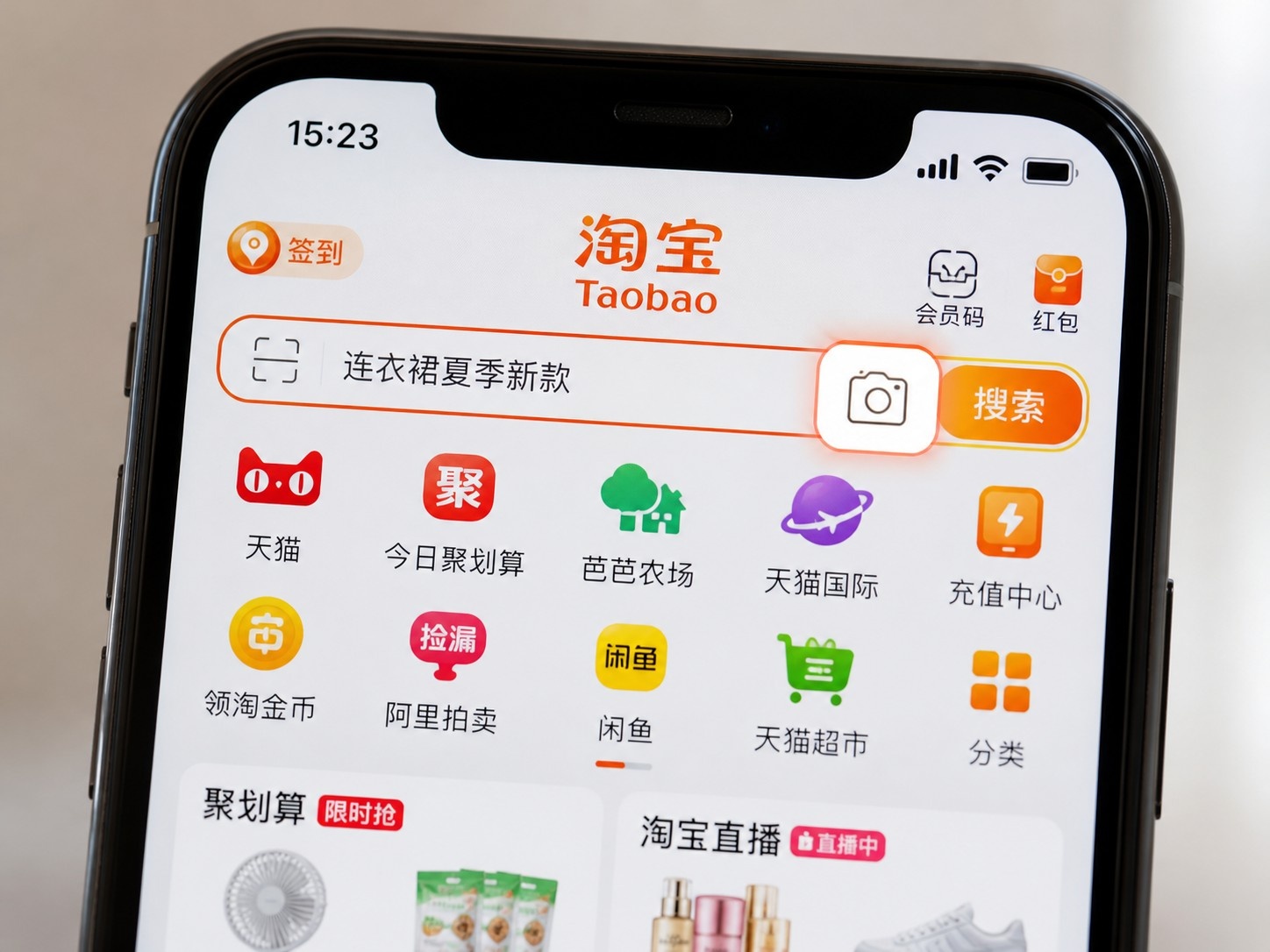
This frustration has largely been solved by one of the most practical features in Chinese mobile apps: visual search. Often called “Tap-to-Search” or “Image Search,” this function allows you to find products without knowing a single word of Chinese. It turns your smartphone camera into a universal shopping assistant.
How to Use Image Search on Taobao
The technology behind this feature is sophisticated, but the user experience is incredibly simple. Here is how you can use it on the most popular Chinese e-commerce platforms, primarily Taobao and JD.com.
Step 1: Open the App
Launch the Taobao app. You don’t need to log in immediately, though having an account makes purchasing easier later.
Step 2: Find the Camera Icon
Look at the search bar at the very top of the home screen. Inside or right next to it, you will see a small camera icon. It is usually colored orange or red, matching the app’s branding.
Step 3: Choose Your Source
Tap the icon. A menu will pop up with two main options:
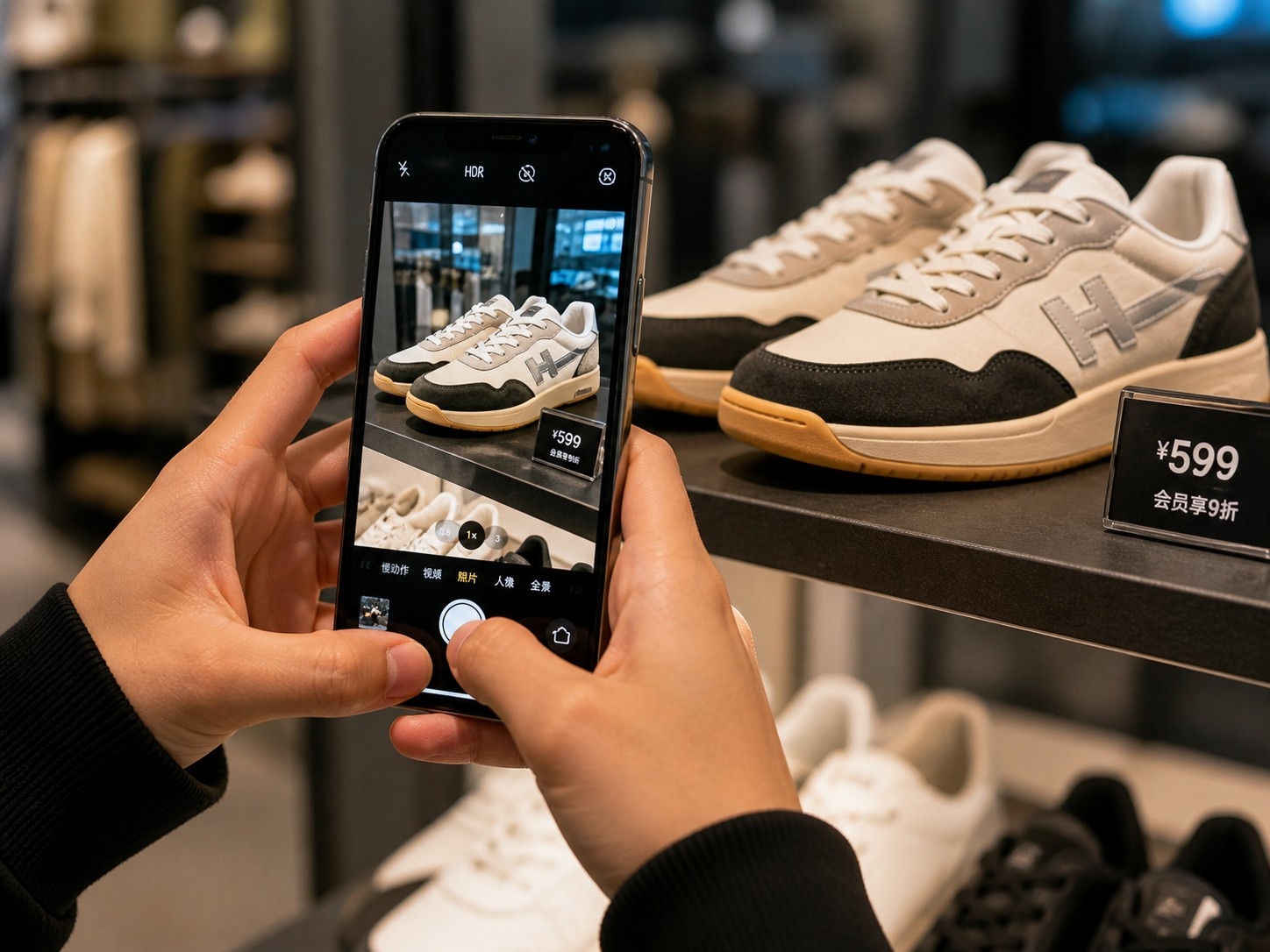
- Take Photo: Use this to scan items you see in real life, like a piece of furniture in your living room or clothes on a friend.
- Select from Album: Use this if you already have a screenshot or a photo saved on your phone.
Real-Life Scenarios
The versatility of this tool is where it truly shines. Consider these common situations:
Fashion Finds
You are walking in Shanghai and spot a local influencer wearing a unique vintage-style denim jacket. You don’t know the brand, and you certainly can’t describe “distressed acid-wash” in Chinese. Simply snap a photo. The app will instantly show you similar jackets from various sellers, often at significantly lower prices than what you might see on Western sites.
Food and Snacks
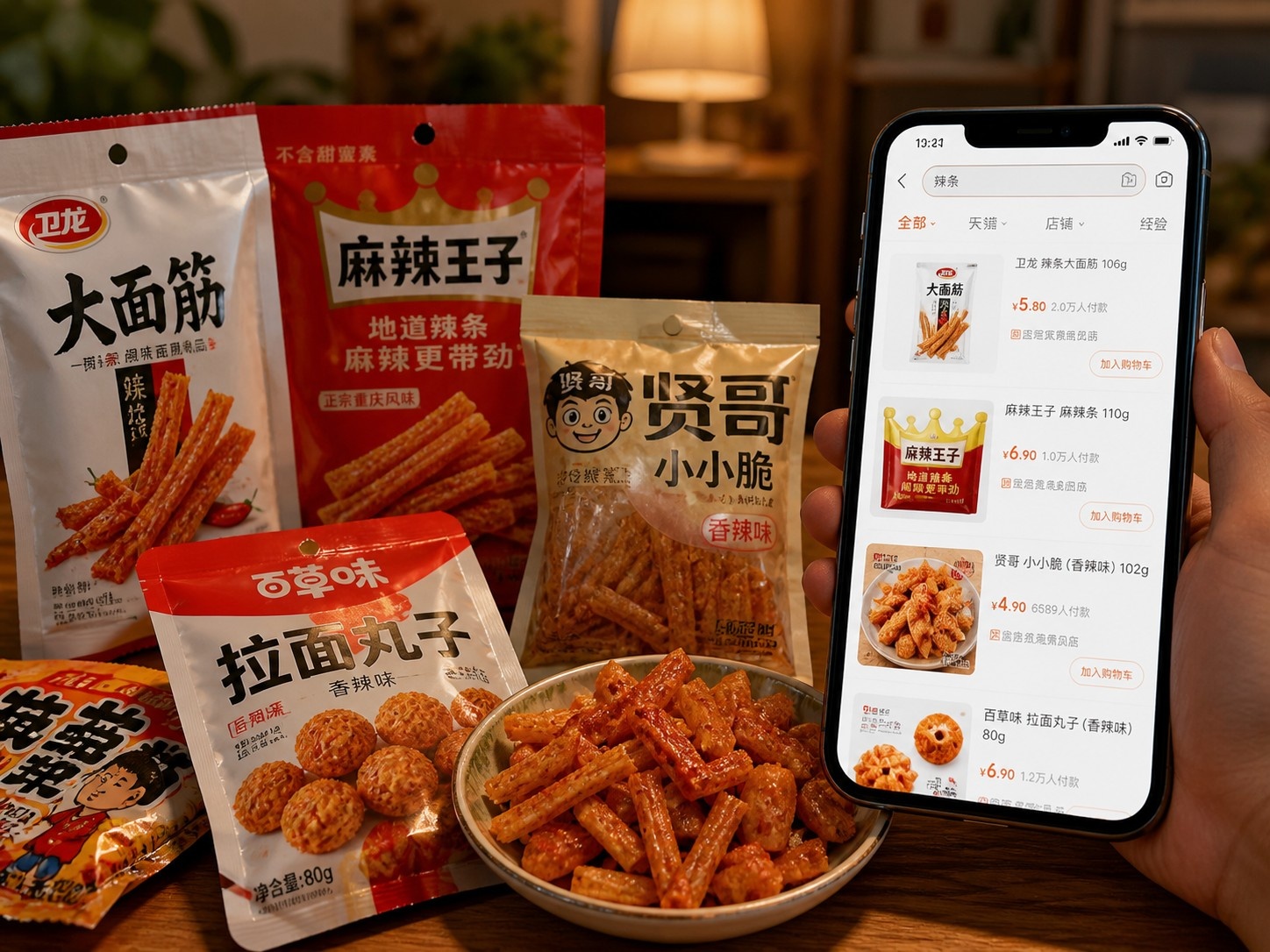
You are at a friend’s house and taste a spicy beef jerky that is absolutely delicious. You ask where they bought it, but they say, “Just search for the brand.” If you don’t know the brand name, take a picture of the packaging. The image search will identify the product and link you directly to the purchase page.
Tips for Better Accuracy
While the technology is impressive, getting the best results requires a few practical tips. Here is how to handle common challenges:
Clean Up the Background
If you are photographing an item on your desk, try to minimize clutter. The algorithm focuses on the main object. A busy background can sometimes confuse the recognition system.
Watch the Lighting
Poor lighting is the enemy of image recognition. If you are in a dimly lit room or outside at night, ensure there is enough light hitting the product. Avoid harsh shadows that obscure details like logos or texture.
Use Close-Ups for Details
If you are looking for a specific accessory, like a watch strap or a piece of jewelry, take a close-up shot rather than a wide-angle photo of the entire outfit. Specificity helps the AI narrow down the results.
Why This Matters
This feature does more than just save time; it democratizes access to Chinese consumer culture. Before visual search, shopping on Taobao was largely limited to those who could read and write Chinese fluently. Now, anyone with a smartphone can navigate the world’s largest online marketplace.
It represents a shift in how we interact with technology: from typing text to using vision as a universal language. For foreigners in China, it removes one of the biggest friction points in daily life. It turns confusion into discovery.

Final Thoughts
The next time you see something you like in China but don’t know how to describe it in words, don’t give up. Pick up your phone, open Taobao, and take a picture. The answer is likely just one tap away.